Group Permissions
Group Permissions
Permission Groups control what each user can see and do within your PayItMonthly account.
Several default Permission Groups are included to suit most businesses. If you need more flexibility, you can also create your own custom Permission Groups with access tailored to each role.
Accessing Group Permissions
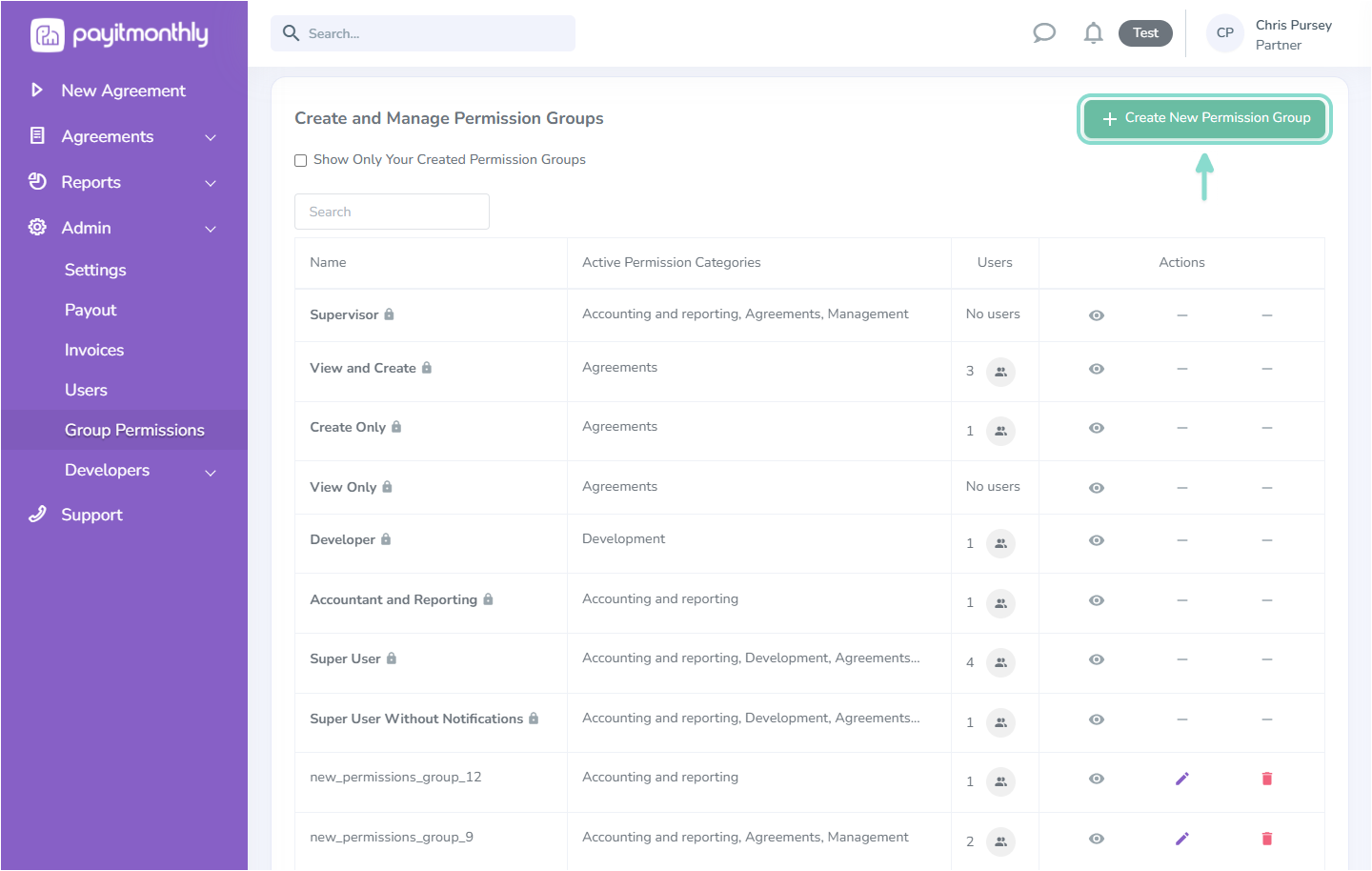
Log in to your PayItMonthly account and go to Admin > Group Permissions.
This page displays all Permission Groups available on your account, including both the default groups provided by PayItMonthly and any custom groups you've created.
Viewing a Permission Group
To see what a Permission Group can access, select the View (eye) icon next to the relevant group.
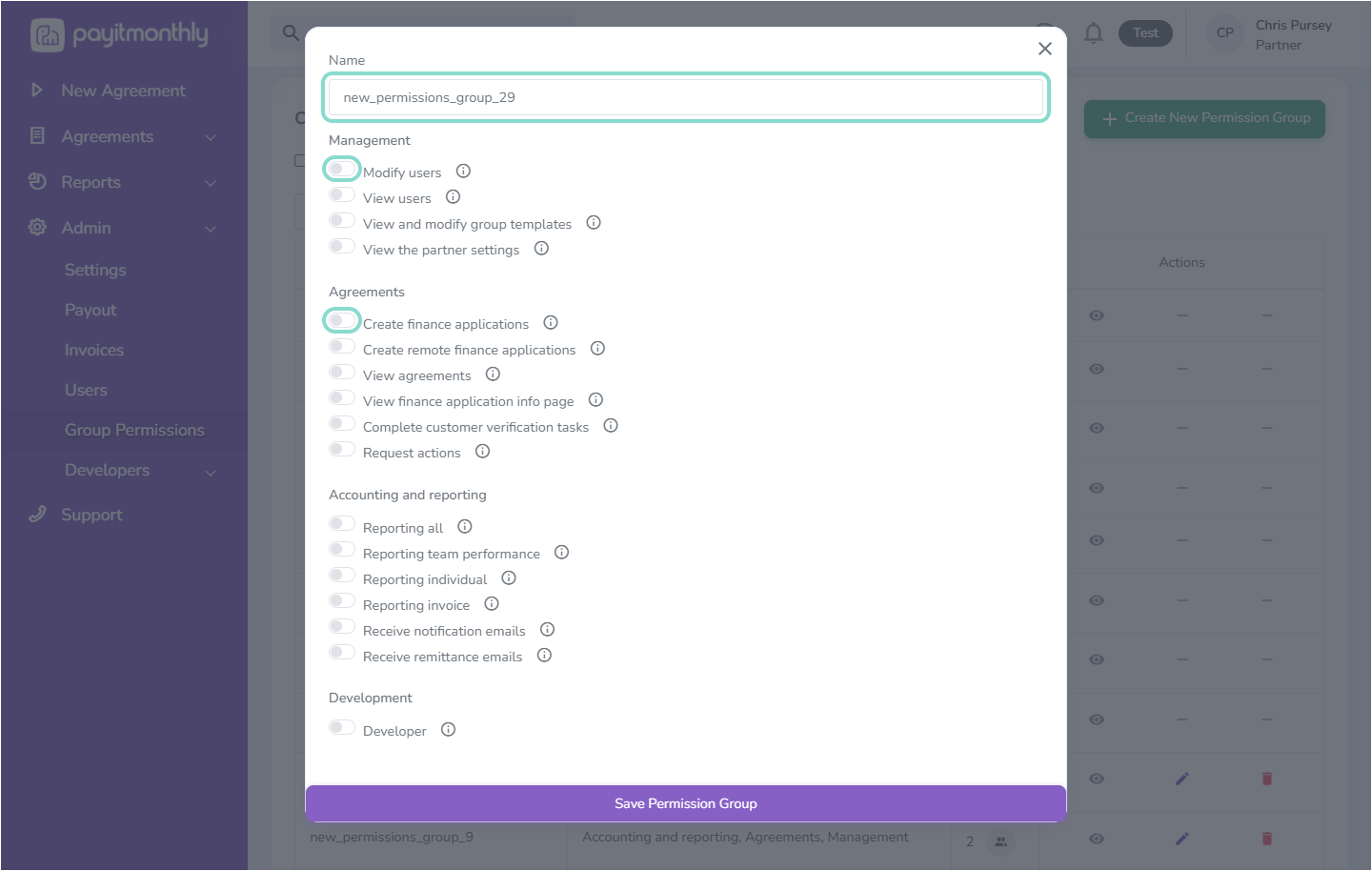
You'll see a full list of available permissions.
Permissions that are enabled are shown with a purple toggle, while disabled permissions are shown in grey.
If you're unsure what a permission controls, hover over the information icon for a brief explanation.
Creating a Custom Permission Group
If none of the default Permission Groups meet your requirements, select Create New Permission Group.
Give your new Permission Group a name, then enable or disable each permission by selecting the relevant toggle.
Once you're happy with the permissions, select Save Permission Group.
Editing or Deleting a Custom Permission Group
Default Permission Groups cannot be edited or deleted.
However, you can update or remove any Permission Groups you've created yourself by selecting either the:
Changes take effect immediately for any users assigned to that Permission Group.
Top Tip
Only give users access to the areas they need for their role. This helps keep your account secure while reducing the risk of accidental changes.
Need more help?
If you're unsure which permissions are right for your team, our Support Team will be happy to help.
By Alex Keith
January 20, 2026